Ignoring files
Build output, logs, editor folders and secrets don't belong in a commit. Git leaves out any file that matches a rule in an ignore file, and Git Revenge writes those rules for you, shows which rule is hiding a file, and lets you edit every ignore file that applies.
Ignoring never deletes anything. It only stops git from listing a file as a change.
Ignoring a file or a folder
In your uncommitted changes, right-click a file and open Ignore:
- Ignore
nameadds a rule for that one file to the.gitignoreat the top of the repository. - Ignore every
.extfile adds a rule for the extension, such as*.log. - Ignore
nameonly on this machine writes the rule to.git/info/exclude, which is never committed, so nobody else sees it. - Ignore… opens a dialog for anything else.
Right-click a folder's heading to ignore the whole folder the same way.
A file git already tracks is offered Ignore name and stop tracking it instead, because a rule alone doesn't affect a tracked file. The file stays on disk; it's removed from the next commit on.
A message in the corner names the rule that was added, with Undo.
The Ignore dialog
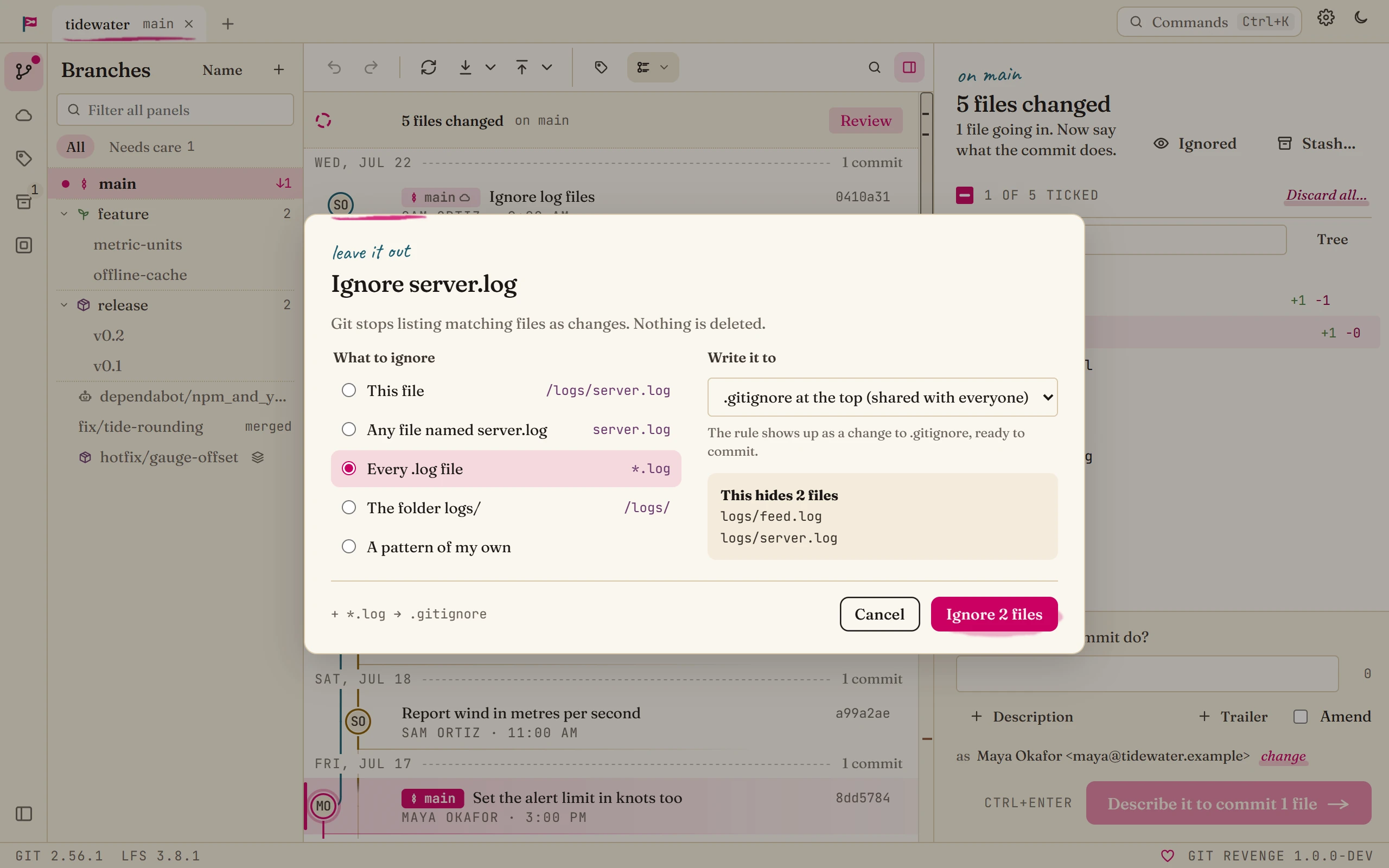
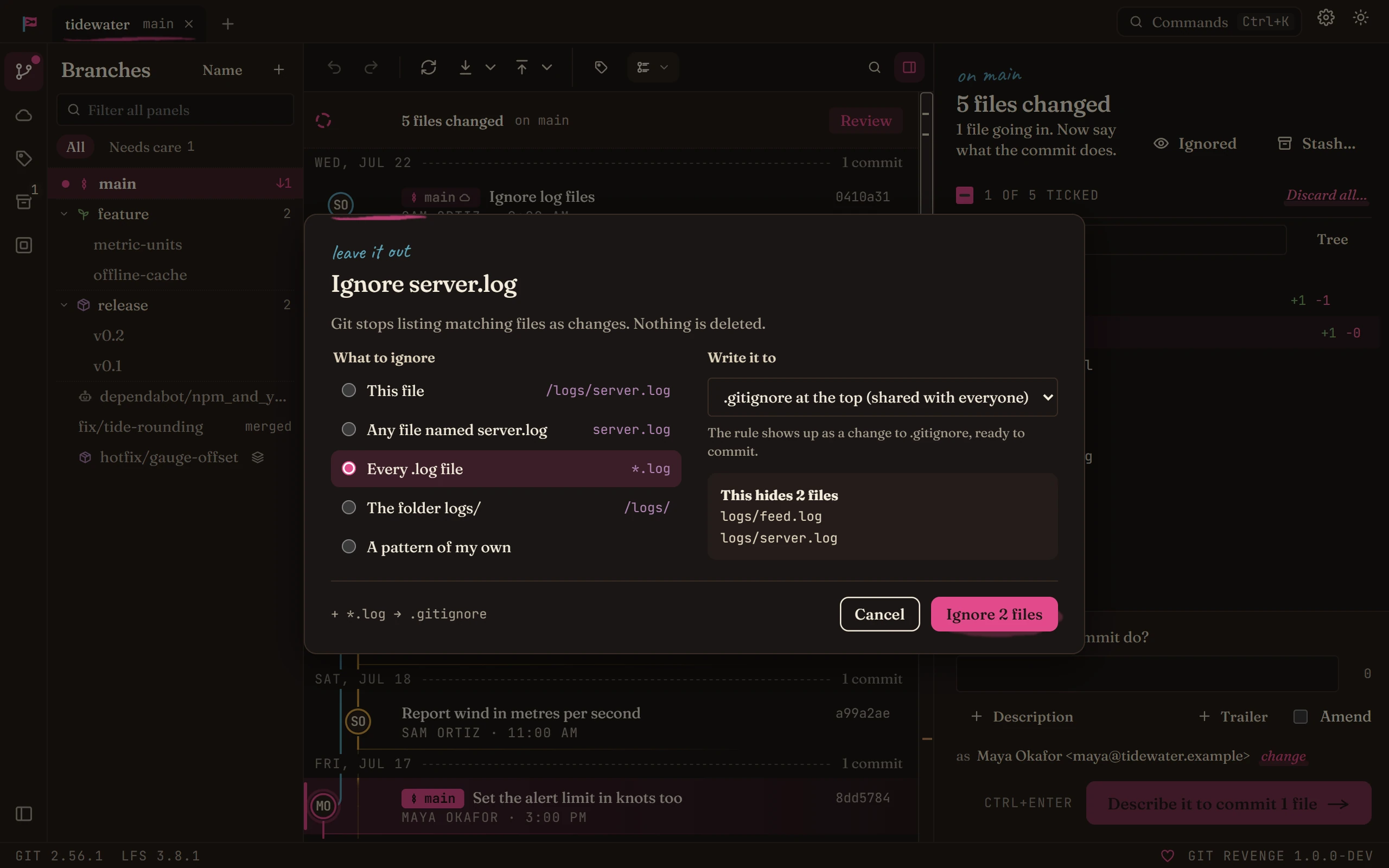
What to ignore offers the patterns that make sense for what you clicked: the file, any file with its name, every file with its extension, or one of the folders it's in. A pattern of my own takes anything else: * matches within a folder, ** across folders, and a trailing / means folders only.
Write it to chooses the file the rule goes in:
| Choice | Who it applies to |
|---|---|
.gitignore at the top | Everyone, once you commit it. |
folder/.gitignore | Everyone, kept next to the files it covers. |
.git/info/exclude | This clone only. It's never committed. |
| Global excludes | Every repository on this computer. |
As you choose, the dialog lists the files the rule would hide. If tracked files match, it says so and offers to stop tracking them too. The button says what will happen, such as Ignore 3 files.
Seeing what's ignored
Ignored, at the top of your changes, lists the ignored files under the ones that changed, each with the rule that hides it. Right-click one and open Stop ignoring:
- Make an exception for
nameadds a!rule that brings that one file back. - Remove the rule takes the rule out, which brings back everything it was hiding. The menu says how many other files that is.
- Open … at line N shows the rule in the Ignore rules tab.
A file inside an ignored folder can't be given an exception, because git doesn't look inside a folder it ignores. The menu says so.
The Ignore rules tab
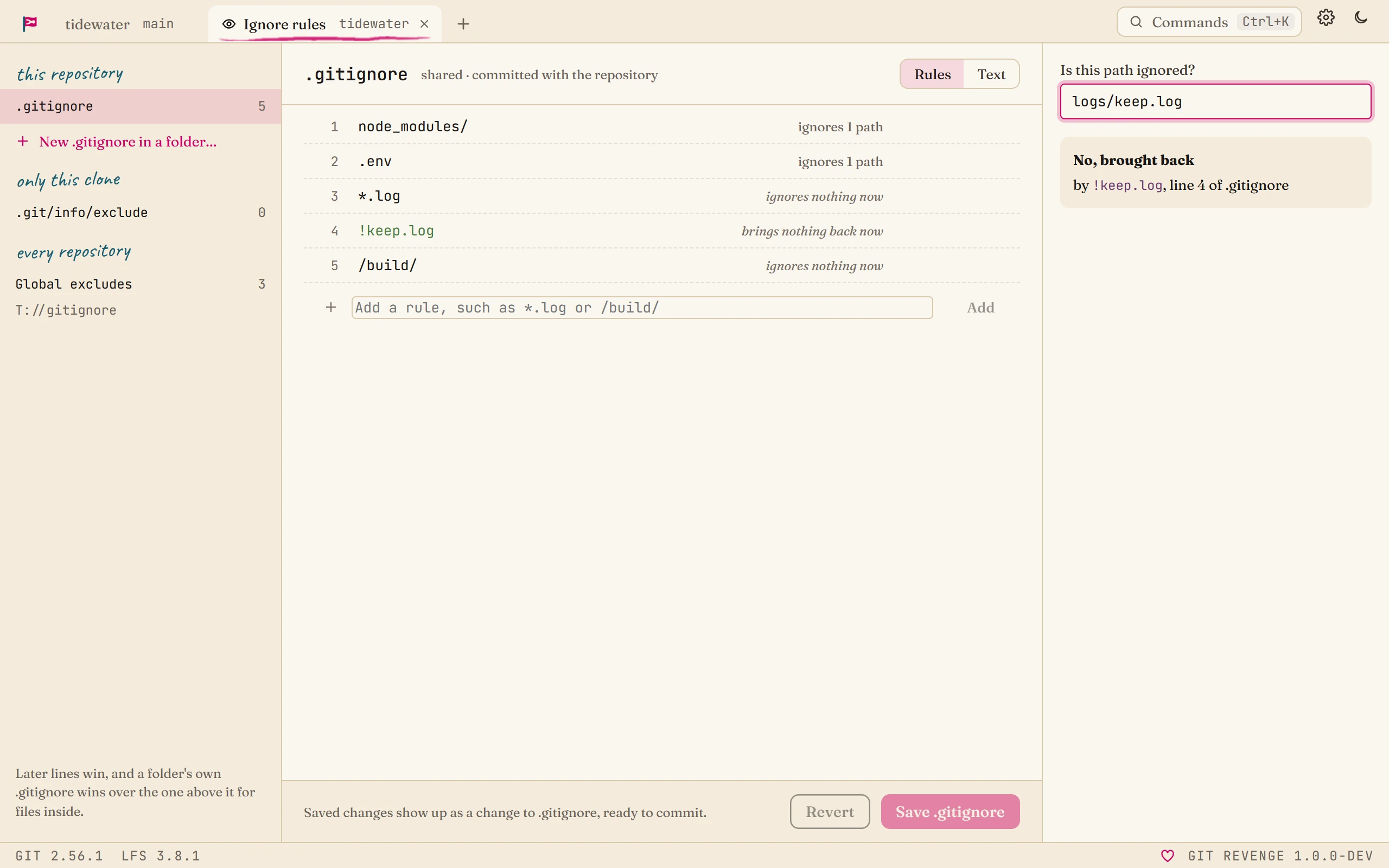
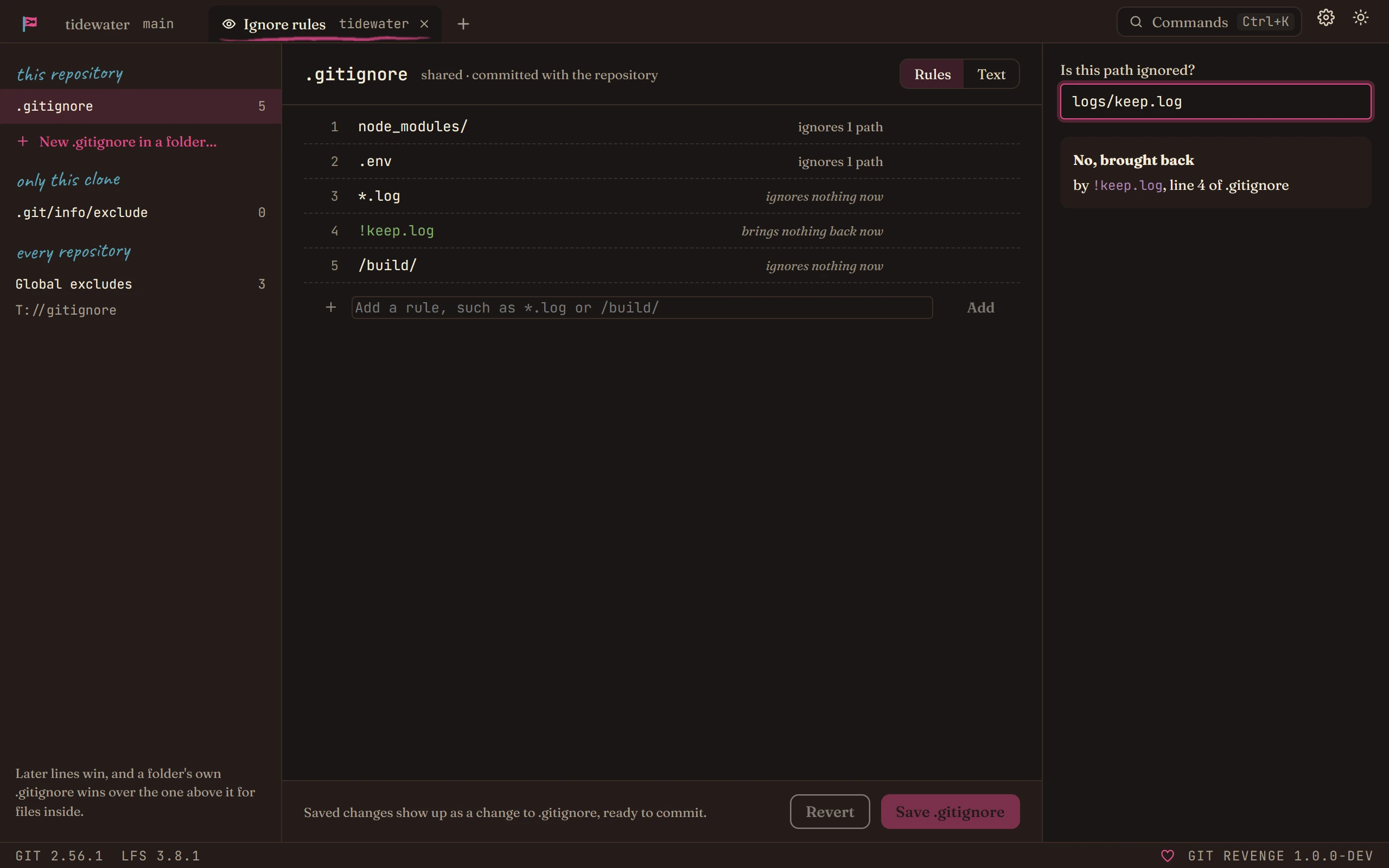
The Ignore rules tab shows every ignore file that applies to a repository. Open it with Edit ignore rules in the command palette, the Ignore rules row in the sidebar's Repository panel, or Edit ignore rules… in a changed file's Ignore menu.
The panel on the left lists the files, in three groups:
- this repository: each
.gitignore, at the top and in any folder. New .gitignore in a folder… starts one. - only this clone:
.git/info/exclude. - every repository: your global excludes file, wherever
core.excludesFileputs it.
Later lines win over earlier ones, and a folder's own .gitignore wins over the one above it for the files inside.
Editing rules
Rules shows the file one rule to a line. Each rule says how many paths it ignores now, so a rule that ignores nothing stands out, and a ! rule says what it brings back. Double-click a rule to edit it, use the arrows to move it up or down, or delete it. The field at the bottom adds a new one.
Text is the file as text, for comments, blank lines, or a lot of changes at once.
Edits stay in the app until you Save, and Revert throws them away. A saved .gitignore shows up in your changes like any other edited file, ready to commit. The counts beside each rule come from the saved file, so they update when you save.
Is this path ignored?
Type a path in Is this path ignored? and the tab answers:
- Yes, ignored, by which pattern, on which line of which file. Show that line goes to it.
- No, brought back, when a
!rule makes an exception for it. - No rule matches it.
The path doesn't have to exist, so you can check a rule before the file it's meant for is there.